How to free up space on Mac, safely.
Your Mac says the disk is almost full. This guide shows how to free up space on Mac in 10 steps, from five-minute quick wins to the hidden files Finder never shows. Prefer one scan? MyMacStorage does it for £14.99, once.
£14.99 once7-day refundmacOS 14 and later
The short answer: free up space on Mac in 5 minutes
Last updated 1 November 2026. Every step uses tools macOS already includes.
- 1Empty the Bin and your Downloads folder.
- 2Turn on Optimise Mac Storage in iCloud.
- 3Delete old iPhone and iPad backups.
- 4Remove large files you no longer need.
- 5Uninstall apps you don’t use.
How to clear space on Mac: start with what fills it
Open System Settings, then General, then Storage. The two or three biggest categories show which methods will help most.
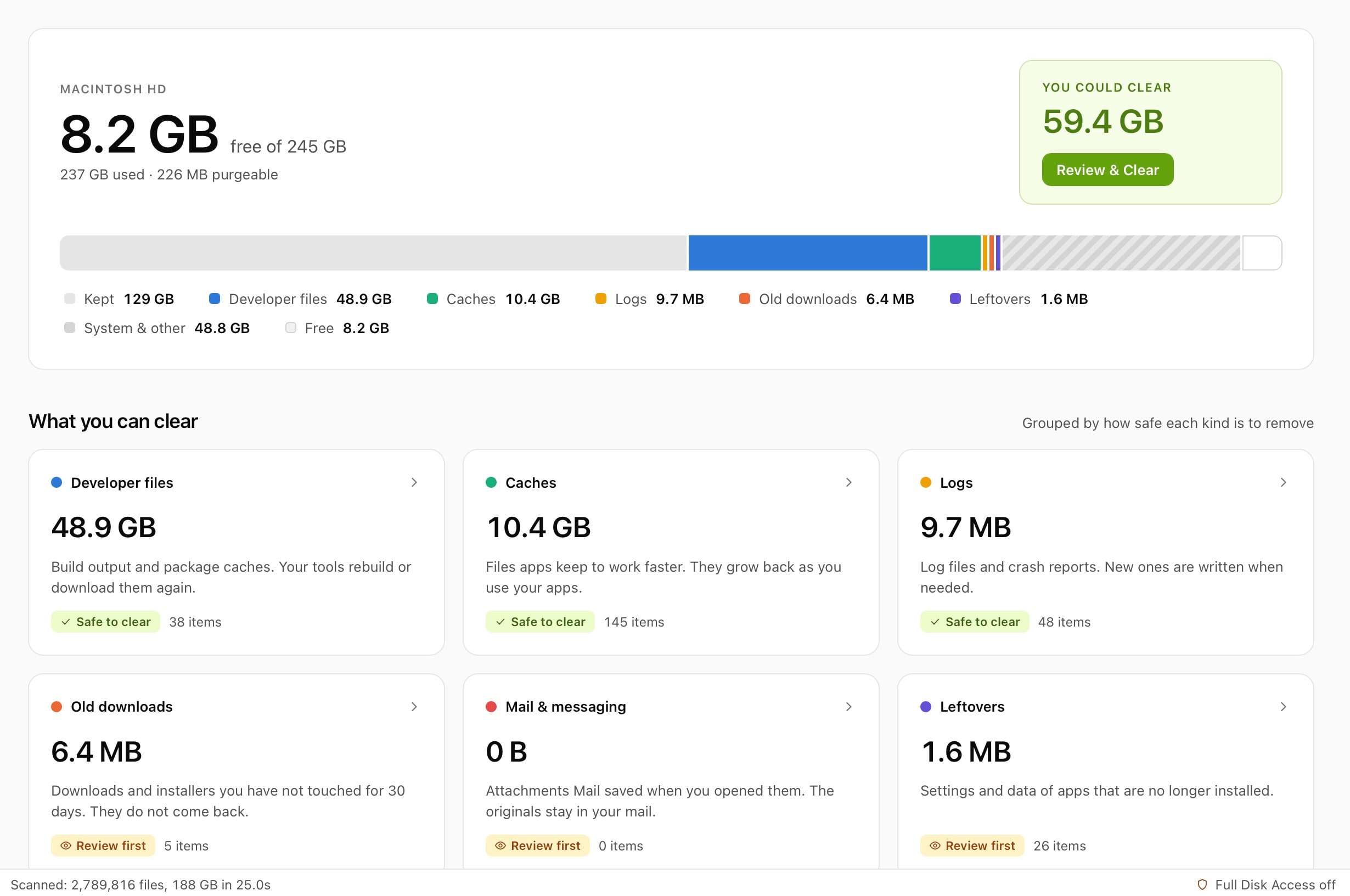
Macintosh HD
145.0 GB free of 494.4 GB
- Kept
- Developer files
- Old downloads
- Caches
- Duplicates
- Logs
- Leftovers
Ready. 70.5 GB to clear.
What each storage category means
| Category | What it holds | How to shrink it |
|---|---|---|
| Applications | Every app you have installed | Method 6 |
| Documents | Your files, including Downloads | Methods 2 and 5 |
| Photos | Your Photos library | Method 3 |
| iOS Files | iPhone and iPad backups | Method 4 |
| Messages | Photos, videos and files from your chats | Method 10 |
| System Data | Caches, logs, app support files and snapshots | Methods 8 and 9 |
How to free up space on Mac: 10 safe methods
Work from the top. The quick wins come first, and the bigger ones follow.
Quick wins
Five minutes each, and nothing here can break your Mac.
1. Empty the Bin
Deleted files stay on your disk until you empty the Bin. Right-click the Bin in the Dock and choose Empty Bin. To stop it filling up again, open Finder, choose Settings, then Advanced, and tick Remove items from the Bin after 30 days.
2. Clear your Downloads folder
In Finder, choose Go, then Downloads. Sort by Size, then drag old installers (
.dmgand.pkgfiles), archives and videos to the Bin.3. Turn on Optimise Mac Storage
Open System Settings, click your name, then iCloud, then Drive, and turn on Optimise Mac Storage. macOS keeps older files in iCloud and downloads them when you open them. Check you have enough iCloud storage first, because the free 5 GB fills quickly.
4. Delete old iPhone and iPad backups
Choose System Settings, then General, then Storage, and click the info button next to iOS Files. Select a backup you no longer need and click Delete. A single backup often takes several gigabytes.
Bigger wins
These take 10 to 20 minutes and usually free the most space.
5. Find and remove large files
In Storage, click the info button next to Documents and open Large Files. Review each file from the biggest down and delete what you no longer need. Old video exports and disk images usually top the list.
6. Uninstall apps you don’t use
Click the info button next to Applications in Storage, sort by size and delete apps you haven’t opened in months. Some apps leave files in
~/Library/Application Support, so check there after you remove one.7. Remove duplicate files
Photos has a Duplicates album, and Finder can sort files by size. For every other file type, follow our guide on how to find duplicate files on Mac.
8. Clear app and browser caches
Quit the app, then delete the contents of its folder inside
~/Library/Caches. Leave the folder itself. Apps rebuild what they need, so expect one slow launch. Our guide on how to clear cache on Mac covers browsers too.9. Shrink System Data
System Data holds caches, logs and app support files. Clearing caches (method 8), removing app leftovers (method 6) and deleting old backups (method 4) all shrink it. Read how to reduce System Data on Mac for the full routine.
10. Clean up Messages and Mail attachments
In Storage, click the info button next to Messages and delete large attachments. In Mail, choose Mailbox, then Erase Deleted Items and Erase Junk Mail.
Want the full walkthrough with 14 methods? Read our guide on how to free up space on a Mac.
Free up space on Mac in one scan with MyMacStorage
The methods above work, but they take an afternoon. MyMacStorage checks all of them in a single pass.
To clean up Mac storage without hunting through folders, MyMacStorage scans your whole disk, names every category and shows what each one frees. Nothing is deleted: everything goes to the Bin, and Undo puts it back. Scanning runs on your Mac, so no filename is ever uploaded.
- 1
Scan your disk
Open MyMacStorage and start one scan. It maps every folder on your Mac, hidden ones included, in a single pass.
- 2
Review what it finds
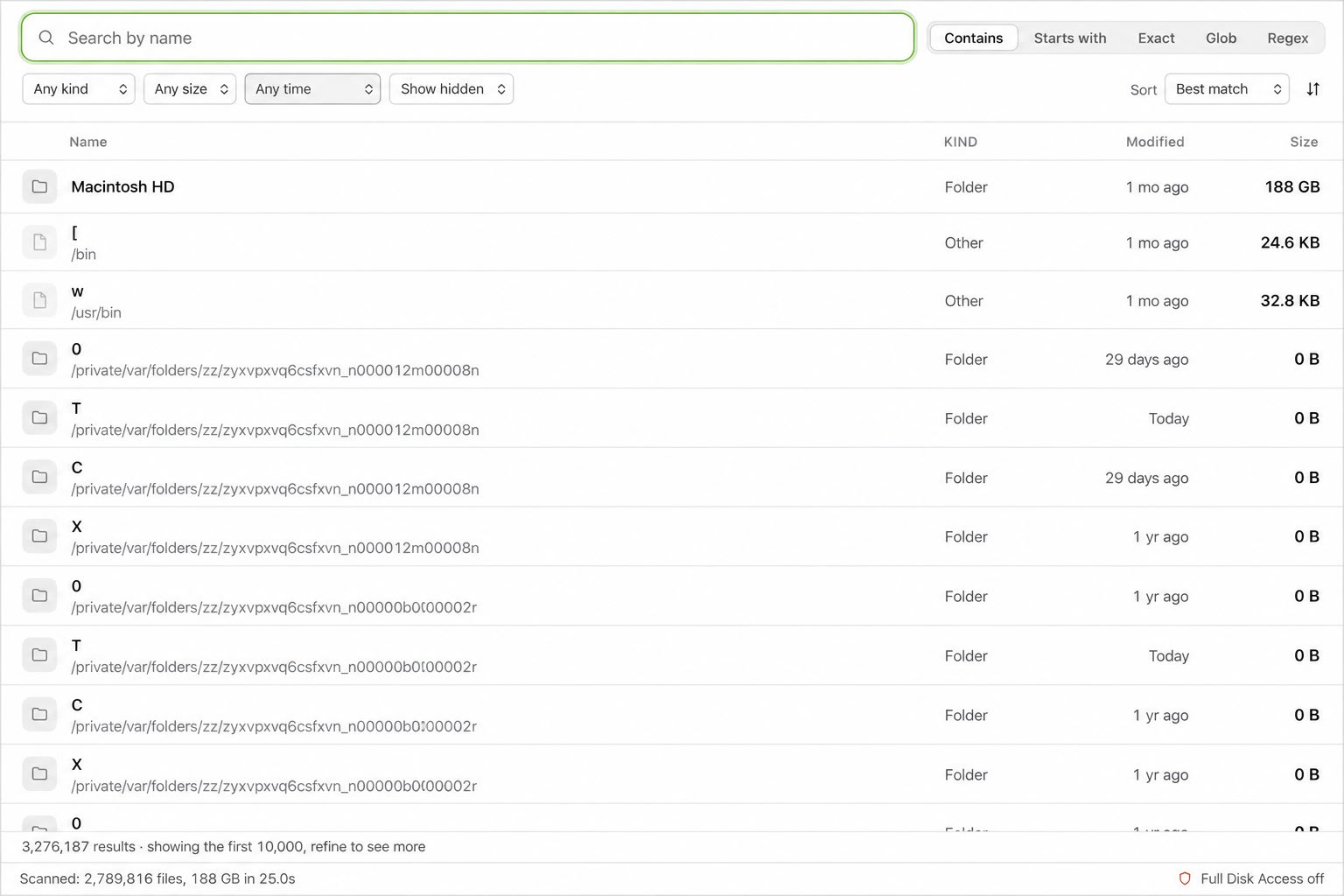
Browse the results tool by tool. Every item shows its size and location, so you decide what goes.
- 3
Clear it to the Bin
Click Clear, and MyMacStorage moves the files to the Bin. Changed your mind? Undo puts the whole cleanup back.
MyMacStorage vs macOS Storage settings
| Feature | macOS | MyMacStorage |
|---|---|---|
| Breaks down System Data | No | |
| Lists your biggest files and folders | Partly | |
| Finds duplicates byte for byte | No | |
| Finds leftovers from removed apps | No | |
| Undoes a whole cleanup | No |
Pay once. Keep it.
No subscription. Every update is included.
£14.99
One-time payment
- Every tool, no limits
- One key for Mac and Windows
- Every future update included
- 7-day refund
Free up space on Mac: your questions, answered.
How to free up space on Mac without deleting files?
Turn on Optimise Mac Storage in iCloud Drive so macOS keeps older files in iCloud, or move large libraries, such as Photos, to an external drive. Your files stay available, but they stop filling your Mac’s disk.
How to clear disk space on Mac quickly?
Empty the Bin, clear your Downloads folder and delete old iPhone backups. Those three steps take about five minutes and often free several gigabytes. A scan with MyMacStorage finds caches, duplicates and large files in the same time.
How to clear space on Mac when the Bin is already empty?
Open System Settings, then General, then Storage, and look for your largest categories. Large files, System Data and old backups usually hold the space, and methods 4, 5, 8 and 9 above clear them.
How much free space should a Mac have?
Keep at least 10 to 15 percent of your disk free. macOS uses that room for swap files, caches and updates, and a major macOS upgrade can need 25 GB or more while it installs.
Why is my Mac storage full when I have few files?
Your own documents are often the smallest part. Caches, app support files, local snapshots, iPhone backups and leftovers from removed apps fill the rest, and macOS groups most of them under System Data.
How do I free up space on a MacBook Air?
Use the same methods as on any Mac. Many MacBook Air models have 256 GB of storage, so old iPhone backups, a large Photos library and Optimise Mac Storage usually make the biggest difference.
Why didn’t my free space go up after I deleted files?
Deleted files stay in the Bin until you empty it. macOS can also keep local Time Machine snapshots for a while, and Storage settings can take a few minutes to update. Empty the Bin and restart your Mac to see the real figure.
Is it safe to use a Mac cleaner app?
It is when the app shows every file before it clears anything and moves files to the Bin instead of deleting them. MyMacStorage works this way, so Undo or the Bin brings back anything you removed, and scanning never leaves your Mac.
Does freeing up space make a Mac faster?
It helps when your disk is nearly full, because macOS needs free space for swap files and updates. A cleanup won’t speed up a Mac that already has plenty of room.
Give your Mac room to breathe.
Now you know how to free up space on Mac by hand. One scan with MyMacStorage does it in minutes. £14.99 once, and it’s yours.