How to reduce System Data on Mac, safely.
Is your MacBook System Data too large? Here is how to reduce System Data on Mac in 9 steps, without deleting anything macOS needs. Prefer one scan that names every part? MyMacStorage does it for £14.99, once.
£14.99 once7-day refundmacOS 14 and later
The short answer: five fixes that solve most cases
Last updated 1 November 2026. Every fix uses tools macOS already includes.
- 1Restart your Mac.
- 2Connect your backup disk and let Time Machine finish.
- 3Clear app and browser caches.
- 4Remove files that uninstalled apps left behind.
- 5Clean up Xcode, Docker and other developer files.
MacBook System Data too large? Check the number first
Open System Settings, then General, then Storage, and wait for the bar to finish loading. Hover over the grey section to see your System Data total.
Is your System Data really a problem?
| What you see | What it means | What to do |
|---|---|---|
| Free space above 15% and System Data stable | Macs keep a lot of system files by design | Leave it alone. Nothing needs fixing. |
| Free space below 10% | macOS has little room for updates and swap files | Work through the fixes below, starting with method 1. |
| System Data grew by tens of gigabytes in weeks | Snapshots, caches or a developer tool are growing | Start with methods 2, 5 and 8. |
| System Data jumped after a macOS update | Install files and a snapshot are still on disk | Restart, wait a day or two, then check again. |
Write the figure down, so you can measure your progress. Free space matters more than the System Data number, and macOS clears caches and logs that are safe to delete when it needs the room.
Mac Other storage taking up space? It’s now called System Data
Apple renamed the category in macOS Monterey. The same fixes apply to both names.
System Data
A catch-all for files that don’t fit Applications, Documents or Photos. It mostly holds temporary and support files that apps and macOS create as they run. You can shrink it.
macOS
The operating system itself. macOS seals and protects it, so you can’t shrink it, and you shouldn’t try.
What System Data includes
| What it holds | Where it lives | Safe to clear? |
|---|---|---|
| App and browser caches | ~/Library/Caches | Yes, the folders inside it |
| Log and crash files | ~/Library/Logs | Yes |
| Local Time Machine snapshots | Hidden on your startup disk | Yes, once a backup completes |
| Support files from removed apps | ~/Library/Application Support | Yes, for apps you removed |
| Developer and AI tool data | ~/Library/Developer, Docker and tool folders | Yes, with each tool’s own commands |
| Spotlight search index | Hidden on your startup disk | Rebuild it, don’t delete it |
| Swap files | /private/var/vm | No, macOS manages them |
How to reduce System Data on Mac: 9 safe fixes
Work from the top. The first fixes carry the least risk.
Quick wins
Low risk, and each one takes minutes.
1. Restart your Mac
A restart clears swap files, temporary files and stale caches that macOS creates while it runs. If you haven’t restarted in weeks, this step alone can free several gigabytes.
2. Let Time Machine finish a backup
Local snapshots are often the largest part of System Data. Connect your backup disk and let Time Machine finish a backup, and macOS clears older local snapshots by itself. Need the space right now? Our step-by-step System Data guide shows the Terminal commands.
3. Update macOS
Some macOS releases contain bugs that let System Data grow out of control, and later updates fix them. Choose System Settings, then General, then Software Update.
4. Delete old log files
In Finder, choose Go, then Go to Folder, and enter
~/Library/Logs. Delete old logs and the crash reports inDiagnosticReports. They rarely take much space, but a misbehaving app can write gigabytes in a few days.
Bigger wins
These take longer, and they usually free the most space.
5. Find the biggest folders in Library
Open
~/Librarywith Go to Folder, switch to list view and choose View, then Show View Options. Tick Calculate all sizes and click the Size column. The largest folders show where the space went.6. Clear app and browser caches
Quit an app, then delete the contents of its folder inside
~/Library/Caches. Leave the Caches folder itself. Apps rebuild what they need on their next launch. Our guide on how to clear cache on Mac covers every browser.7. Remove leftovers from uninstalled apps
Check
~/Library/Application Supportand~/Library/Containersfor folders named after apps you no longer have. Delete only those that clearly belong to removed apps. When in doubt, leave the folder.8. Clean up developer files
If you write code, this often frees more than every other fix. Delete
~/Library/Developer/Xcode/DerivedData, rundocker system pruneto remove unused images, and runbrew cleanupto drop old package versions. Check folders for local AI models too, because a single model can take many gigabytes.9. Rebuild the Spotlight index
A damaged index can grow far beyond its normal size. Open System Settings, then Spotlight, and click Search Privacy. Add your startup disk, wait a minute, then remove it. Spotlight rebuilds a smaller index, and search runs slowly until it finishes.
MacBook Pro System Data too large? Check developer and AI files
On a MacBook Pro used for coding or video work, method 8 usually matters most. Xcode simulators, Docker images and local AI models can each take tens of gigabytes.
Small disk? Keep at least 20 GB free
A small disk leaves less room for snapshots and updates, so keep at least 20 GB free. Connect your backup disk often and restart once a week. For more ways to make room, read our guide on how to free up space on a Mac.
What not to delete
Some files look like clutter but keep your Mac running.
The System folder and the top-level Library folder
macOS needs both to start up. Work only inside your own ~/Library.
Swap files in /private/var/vm
macOS creates and removes these as it needs them.
Anything in /private/var/folders
macOS clears these temporary files itself, and deleting them by hand can crash running apps.
Folders for apps you still use
They hold your settings, data and sign-ins.
See what’s inside System Data with MyMacStorage
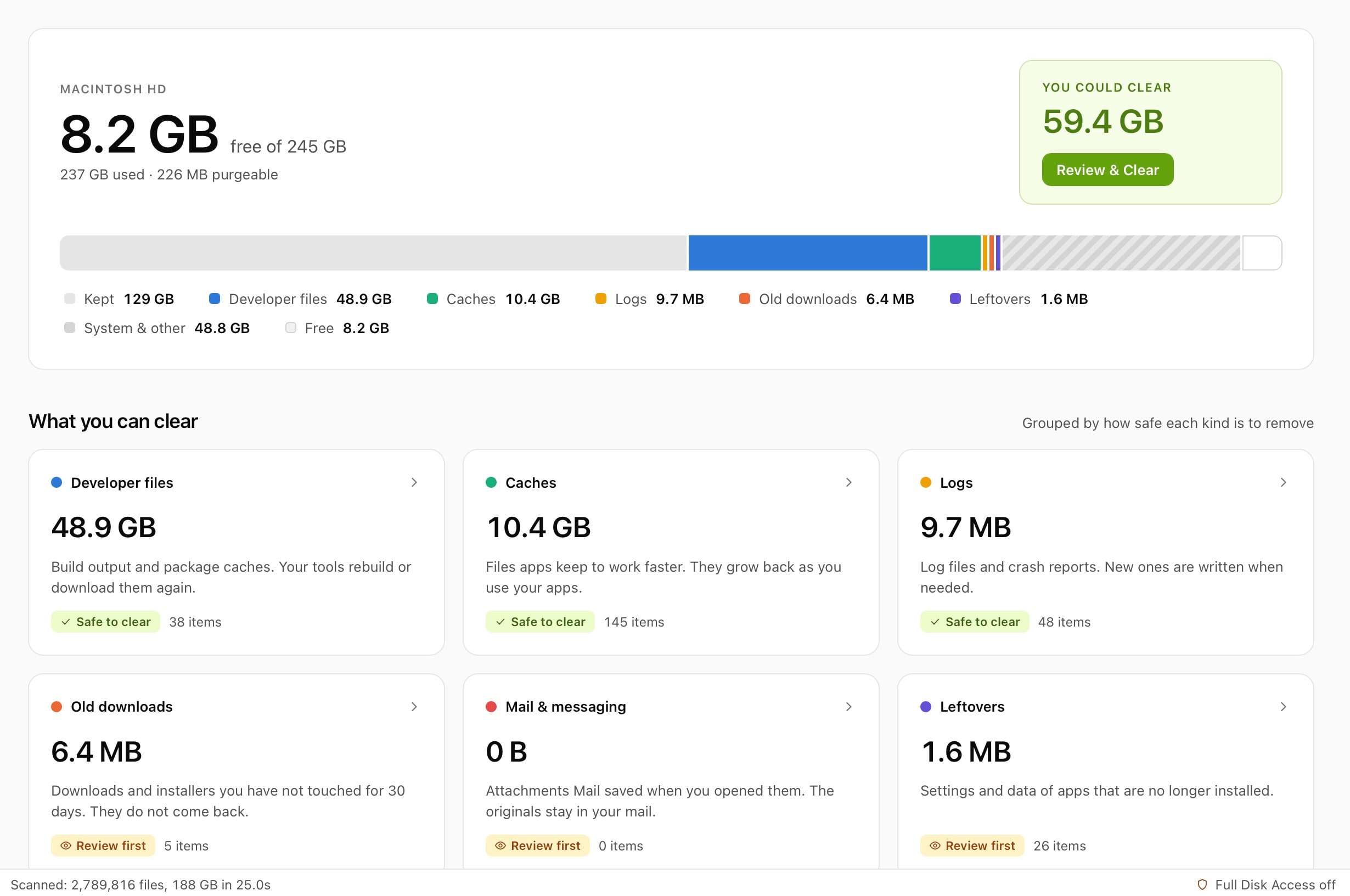
Storage settings shows one grey block. MyMacStorage opens it up.
MyMacStorage names each part of System Data, from caches and snapshots to developer files and app leftovers, and shows its size, so you know what is safe to clear. That is how to reduce System Data on Mac in minutes. Nothing is deleted outright: everything goes to the Bin, and Undo puts it back.
- 1
Scan your disk
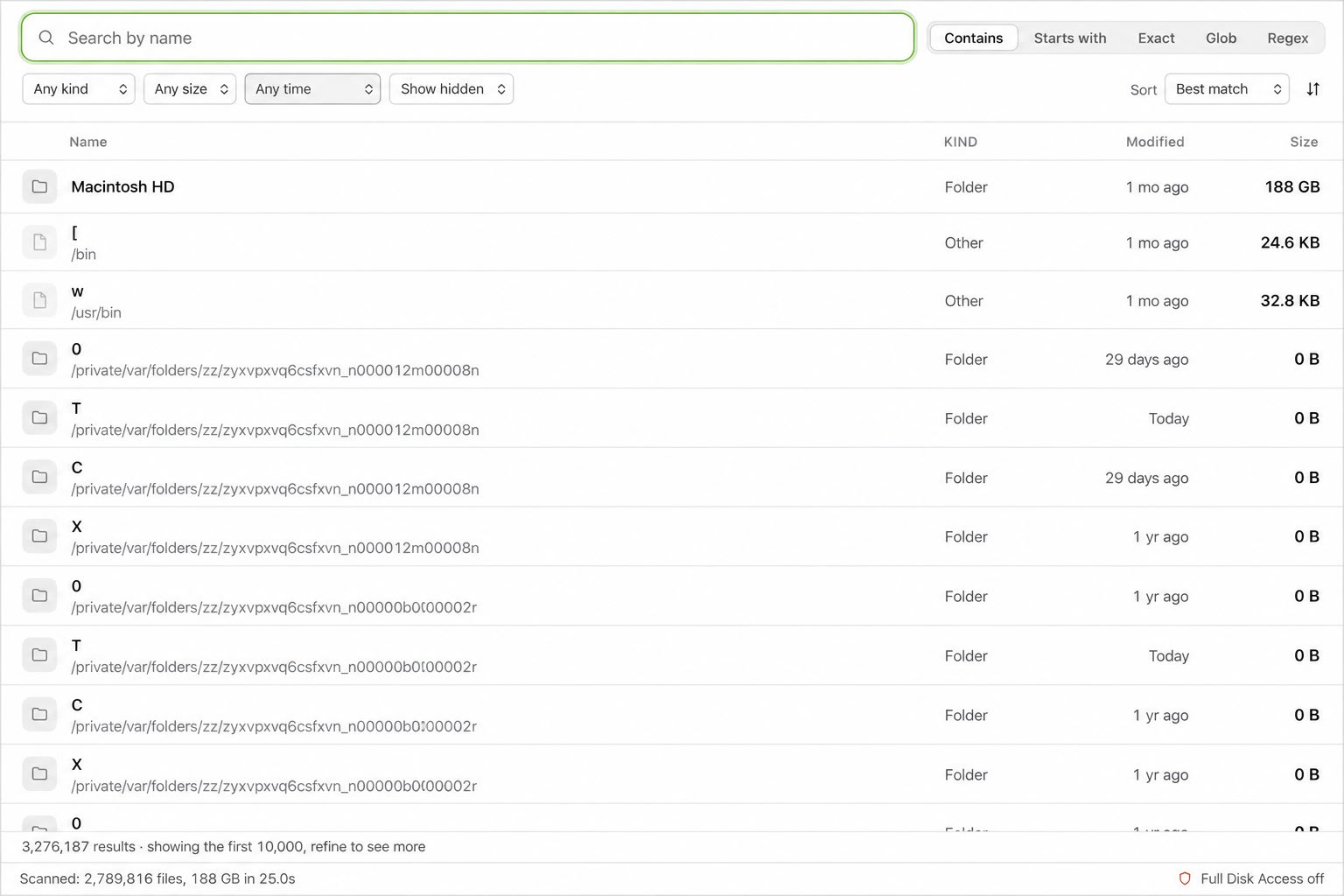
Open MyMacStorage and start one scan. It maps every folder on your Mac, hidden ones included, in a single pass.
- 2
Review what it finds
Browse the results tool by tool. Every item shows its size and location, so you decide what goes.
- 3
Clear it to the Bin
Click Clear, and MyMacStorage moves the files to the Bin. Changed your mind? Undo puts the whole cleanup back.
Pay once. Keep it.
No subscription. Every update is included.
£14.99
One-time payment
- Every tool, no limits
- One key for Mac and Windows
- Every future update included
- 7-day refund
System Data on Mac: your questions, answered.
How to reduce System Data on Mac without Terminal?
Restart your Mac, connect your backup disk so Time Machine can clear local snapshots, and delete cache and log folders in Finder. Then remove support folders for apps you uninstalled. None of these steps needs Terminal.
Is MacBook System Data too large at 100 GB?
Not always. The number matters less than your free space. If you have more than 15 percent of your disk free and System Data stays steady, leave it alone. If free space is low or it keeps growing, use the fixes above.
Is MacBook Pro System Data too large at 200 GB normal?
It can be, mostly on a Mac used for development or video work. Xcode, Docker images, local AI models and large caches add up quickly. Check the biggest folders in your Library first, then clear what you no longer use.
Why is Mac Other storage taking up space on my disk?
Apple renamed Other storage to System Data in macOS Monterey, so it is the same category. It holds caches, logs, snapshots and support files that don’t fit under Applications, Documents or Photos.
Why is my MacBook System Data too large after an update?
macOS keeps temporary install files and often takes a local snapshot before an update. Most of that clears within a day or two. Restart your Mac, then check Storage settings again.
Is it safe to clear System Data?
Yes, if you clear the right parts. Caches, logs, local snapshots and leftovers from removed apps are safe to remove. Leave the System folder, the top-level Library folder and the swap files alone.
Why does System Data keep coming back?
Apps rebuild their caches as you use them, and Time Machine keeps making local snapshots. Some regrowth is normal. If it returns fast, connect your backup disk more often and check which app’s cache grows most.
Does reinstalling macOS reduce System Data?
Reinstalling over your current system keeps your apps and their data, so it rarely helps. Erasing your Mac and restoring from a backup resets System Data, but treat that as a last resort.
Give your Mac room to breathe.
Now you know how to reduce System Data on Mac by hand. One scan with MyMacStorage shows the rest. £14.99 once, and it’s yours.